日期:2026年 05月 23日
標籤: C# Asp.NET Core Windows Forms
摘要:個人作品
應用所需:1. Visual Studio 2022
程式說明:使用 Dotnet 8.0 實作 C# WindowsForm - 康威生命遊戲的小作品
範例檔案:Githu連結
工具下載:下載連結(Google硬碟空間)
基本介紹:本篇分為 3 大部分。
第一部分:需求動機 & 成果
第二部分:程式說明
第三部分:補充遭遇問題 & 優化
第一部分:需求動機 & 成果
Step 1:起源
在 Thread 平台上,看到有推文用 Python 直接生成pdf到桌面的小程式 於是想,是否能在 C# 上實現相同的功能
此功能確實也省去了將圖片轉 Pdf 檔案的時間,主要核心:
分享 args[] 接收拖曳路徑的機制與 iText7 的基本寫法,並提供實用工具下載。
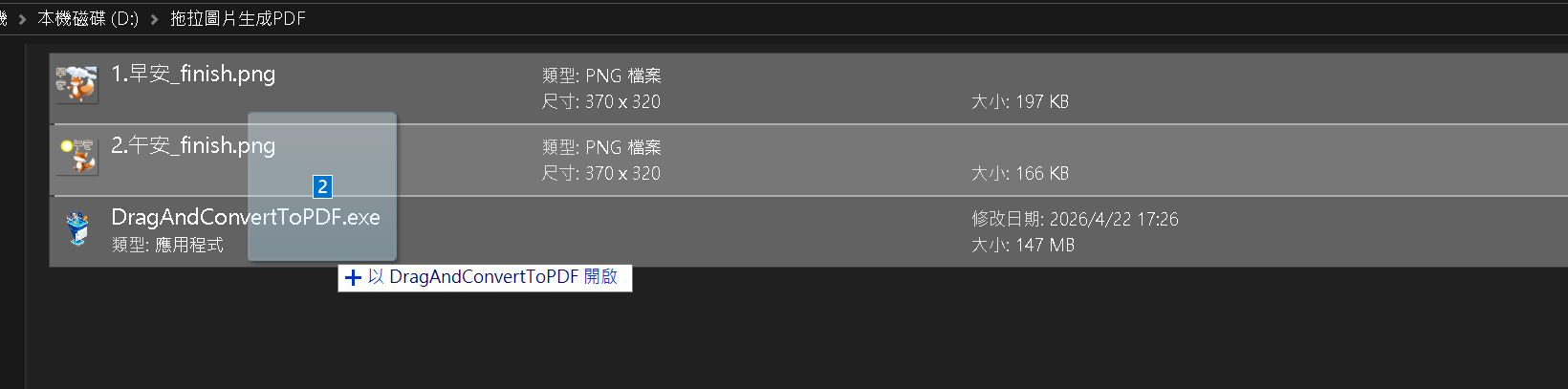
Step 2:實際成果 - 操作說明
用滑鼠圈選 2 個圖片檔案,然後拖曳到應用程式 DragAndConvertToPDF.exe
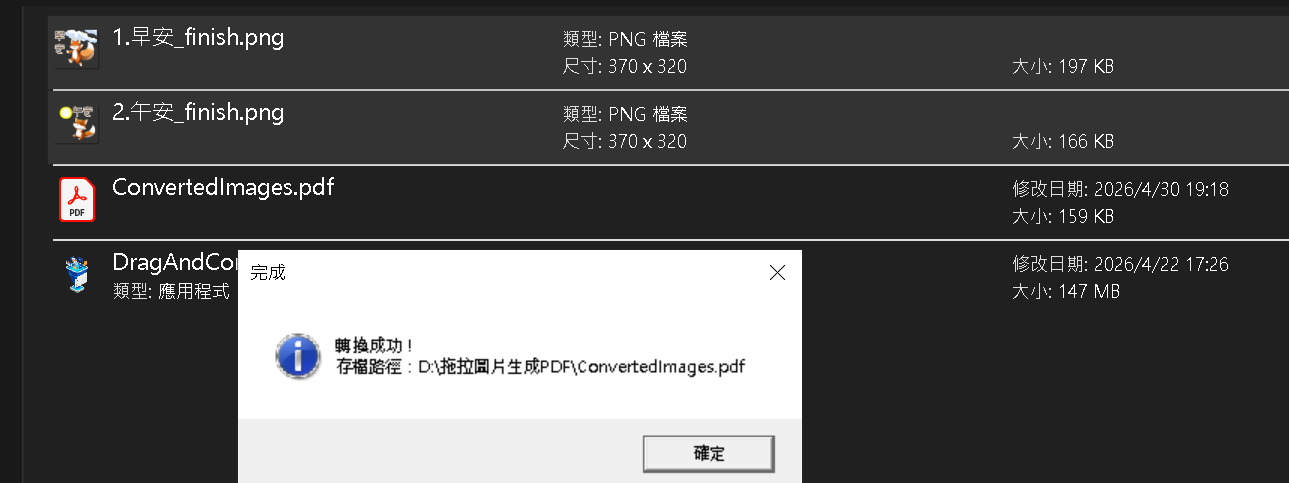
Step 3:實際成果 - 生成PDF
跳出提示訊息
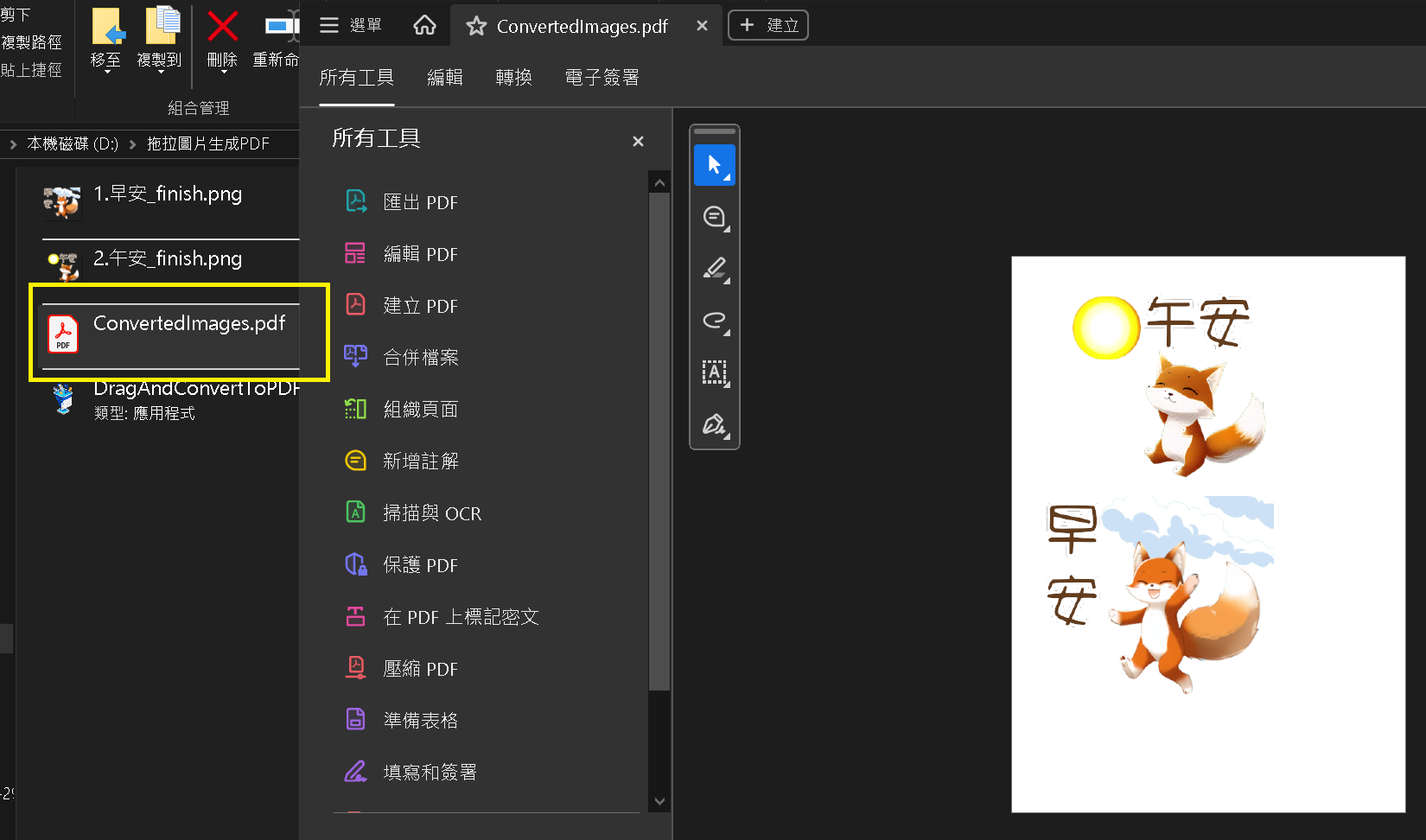
Step 4:實際成果 - 完成
最終可以打開 PDF 檔案,將這個 PDF 拿去做列印、提交文件等多個用途
可以省去上傳到線上網站進行合成的時間
第二部分:程式說明
Step 1:主程式
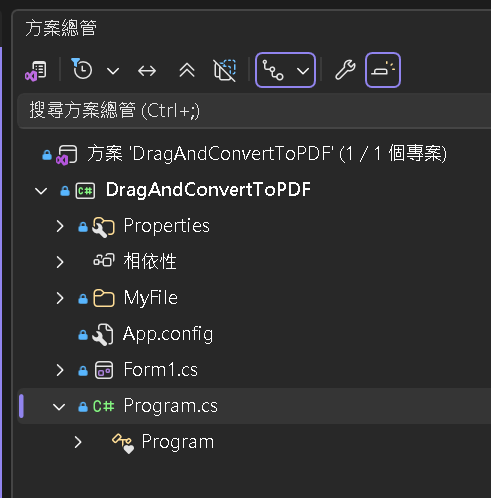
開啟範例專案後,這是一個 WinForm 程式
特點是只有一個 main 函式,並且執行時隱藏於作業系統背景應用下
※使用 Winform 是為了提示訊息時的 MessageBox 提示框,提升用戶體驗,避免異常時程式沒有任何響應
Step 2:代碼說明
代碼主要由三個部分組成
| SupportedExtensions | 支援的副檔名 |
| Main | 主程式,包含 : 檢核、圖片轉記憶體、呼叫 iText7 依賴庫、生成檔案 |
| CreatePdfFromImages | 生成 PDF 檔案主要依賴於 iText7 |
/// <summary>
/// 一、支援的圖片格式清單,使用 HashSet 以提升查詢效率,並且忽略大小寫
/// </summary>
private static readonly HashSet<string> SupportedExtensions = new HashSet<string>(StringComparer.OrdinalIgnoreCase)
{
    ".jpg", ".jpeg", ".png", ".bmp", ".gif", ".tif", ".tiff"
};

/// <summary>
/// 二、應用程式的主要入口點,負責處理拖曳進來的檔案,檢查格式,並呼叫 PDF 轉換功能
/// </summary>
[STAThread]
static void Main(string[] args)
{
    // 1. 確認是否有拖曳檔案進來,如果沒有則直接結束
    if (args.Length == 0) return;
    List<string> validFiles = new List<string>();
    List<string> invalidFiles = new List<string>();
    // 2. 檢查拖曳進來的檔案是否合法
    foreach (string file in args)
    {
        string ext = Path.GetExtension(file).ToLower();
        if (SupportedExtensions.Contains(ext))
        {
            validFiles.Add(file);
        }
        else
        {
            invalidFiles.Add(Path.GetFileName(file));
        }
    }
    // 2-1. 如果有不合法檔案,跳出訊息提示
    if (invalidFiles.Count > 0)
    {
        string message = "以下檔案格式不支援,將不會被轉換:\n\n" + string.Join("\n", invalidFiles);
        MessageBox.Show(message, "不支援的格式", MessageBoxButtons.OK, MessageBoxIcon.Warning);
    }
    // 2-2. 如果完全沒有合法圖片,直接結束
    if (validFiles.Count == 0) return;
    // 3. 處理輸出路徑與自動疊加數字
    string baseDirectory = Path.GetDirectoryName(validFiles[0]);
    string targetPdfPath = GetUniqueFilePath(baseDirectory, "ConvertedImages.pdf");
    try
    {
        // 3-1. 呼叫 PDF 轉換功能,將合法圖片轉換成 PDF & 並且提示成功
        CreatePdfFromImages(validFiles, targetPdfPath);
        MessageBox.Show($"轉換成功!\n存檔路徑:{targetPdfPath}", "完成", MessageBoxButtons.OK, MessageBoxIcon.Information);
    }
    catch (Exception ex)
    {
        // 3-2. 如果轉換過程中發生錯誤,顯示錯誤訊息
        MessageBox.Show($"轉換過程發生錯誤:{ex.Message}", "錯誤", MessageBoxButtons.OK, MessageBoxIcon.Error);
    }
    // 內部方法:自動計算不重複檔名的邏輯
    string GetUniqueFilePath(string directory, string fileName)
    {
        string fullPath = Path.Combine(directory, fileName);
        if (!File.Exists(fullPath)) return fullPath;
        string nameOnly = Path.GetFileNameWithoutExtension(fileName);
        string extension = Path.GetExtension(fileName);
        int counter = 1;
        while (File.Exists(fullPath))
        {
            // 格式如:ConvertedImages(1).pdf
            fullPath = Path.Combine(directory, $"{nameOnly}({counter}){extension}");
            counter++;
        }
        return fullPath;
    }
}

/// <summary>
/// 三、將 Pdf Document 寫入指定路徑的 PDF 檔案,並將圖片清單中的每張圖片依序加入 PDF 中
/// </summary>
/// <param name="imagePaths">電腦上檔案路徑</param>
/// <param name="destPdf">目標 PDF 檔案存放路徑</param>
private static void CreatePdfFromImages(List<string> imagePaths, string destPdf)
{
    using (PdfWriter writer = new PdfWriter(destPdf))
    {
        using (PdfDocument pdf = new PdfDocument(writer))
        {
            Document document = new Document(pdf);
            foreach (string path in imagePaths)
            {
                ImageData data = ImageDataFactory.Create(path);
                iText.Layout.Element.Image img = new iText.Layout.Element.Image(data);
                document.Add(img);
            }
            document.Close();
        }
    }
}
Step 3:Nuget安裝 - iText
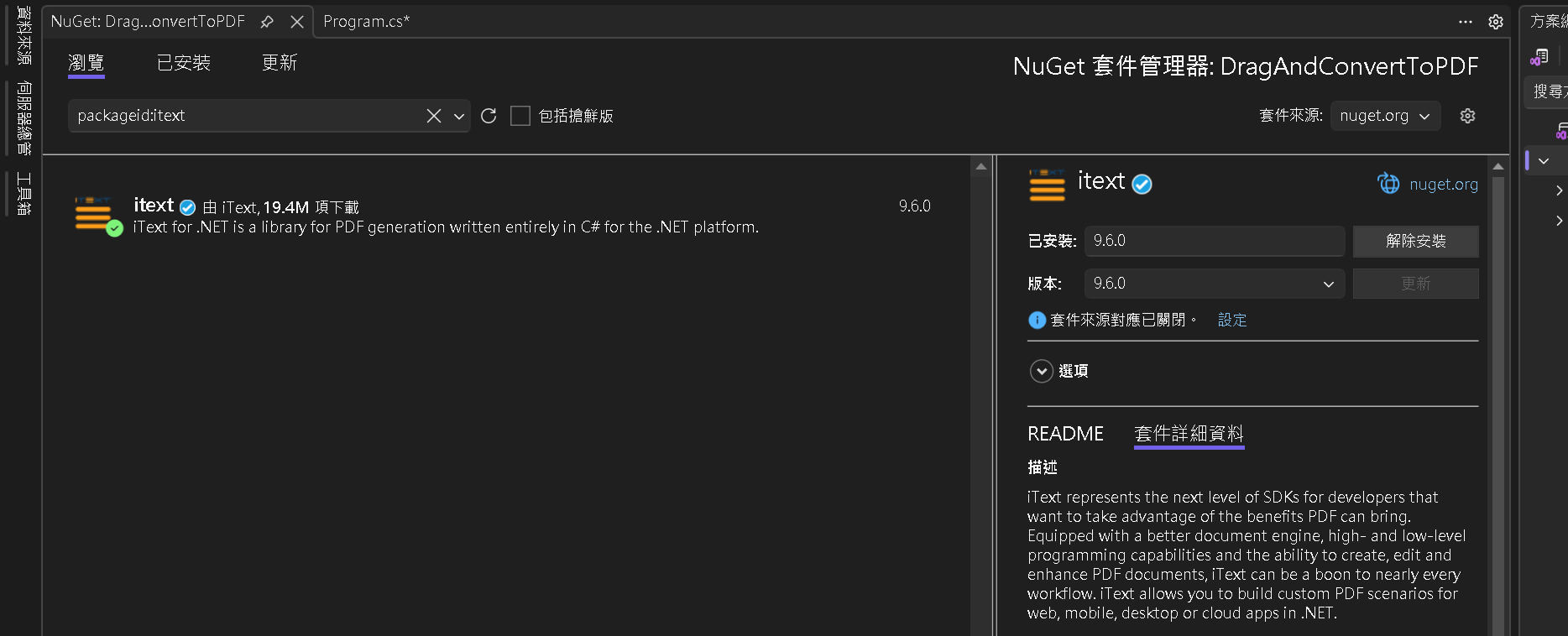
本專案需要從 Nuget 安裝 itext 依賴庫,本篇版本 9.6.0
packageid:itext
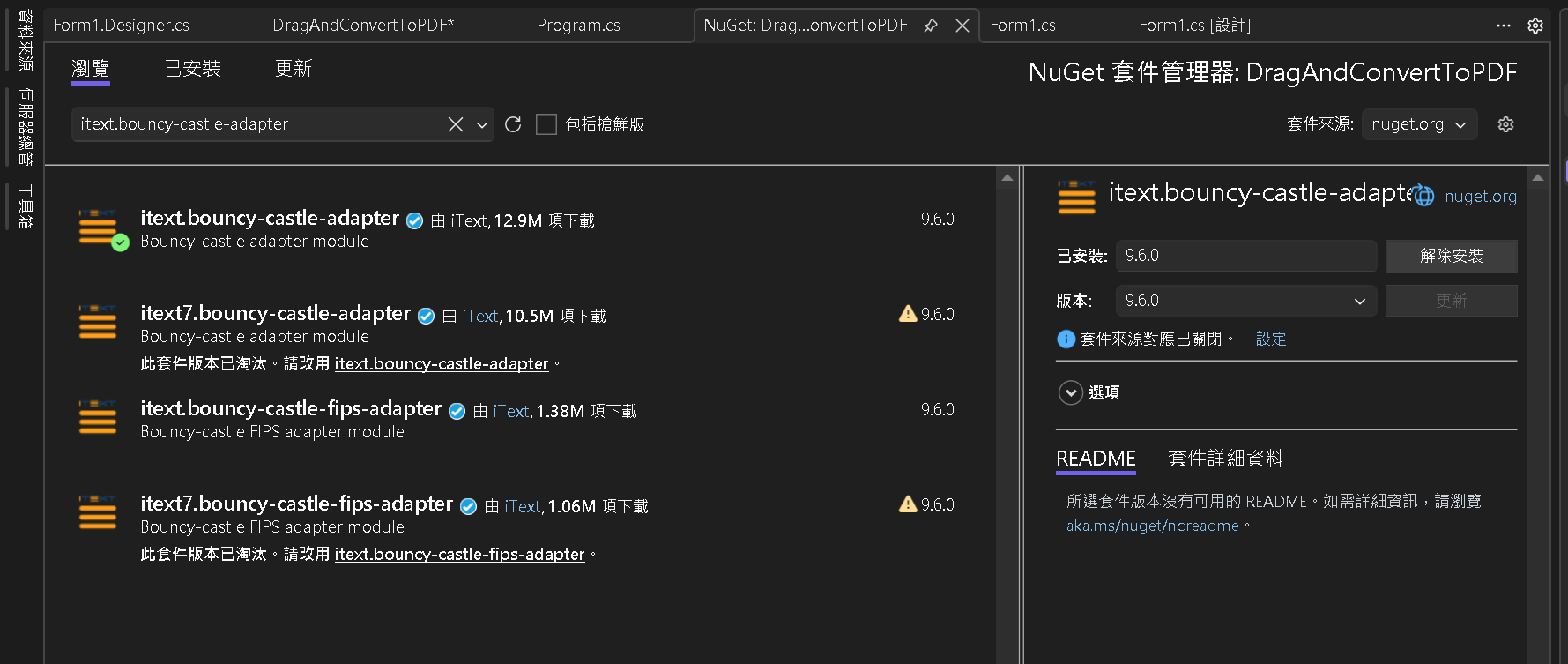
然後也需安裝調配庫,本篇版本 9.6.0
itext.bouncy-castle-adapter
Step 4:Visual Studio 2026 發布流程
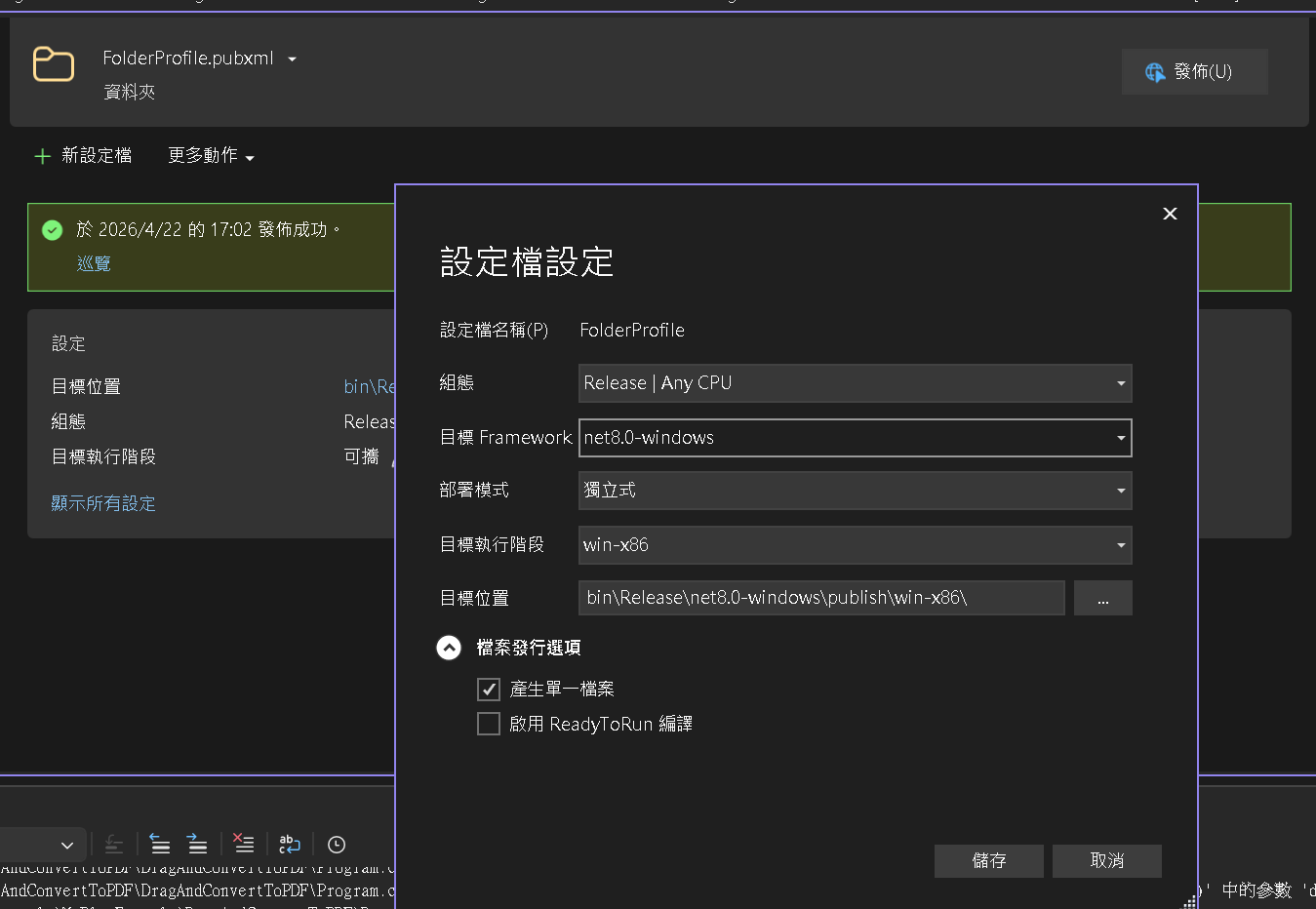
要進行 Visual Studio 2026 專案發布,對專案 -> 滑鼠右鍵 -> 發佈(B)…
以下是對應參數,才能讓用戶下載後只有 .exe 檔案,有能順利執行
| 組態 | Release & Any CPU |
| 目標 FrameWork | net8.0-windows |
| 部署模式 | 獨立式 |
| 目標執行階段 | win-x86 |
| 目標位置 | 您的輸出位置 |
| 檔案發行選項 | 產生單一檔案 打勾 |
第三部分:補充優化 & 遭遇
Step 1:增加程式專屬 Icon - 發布與美化
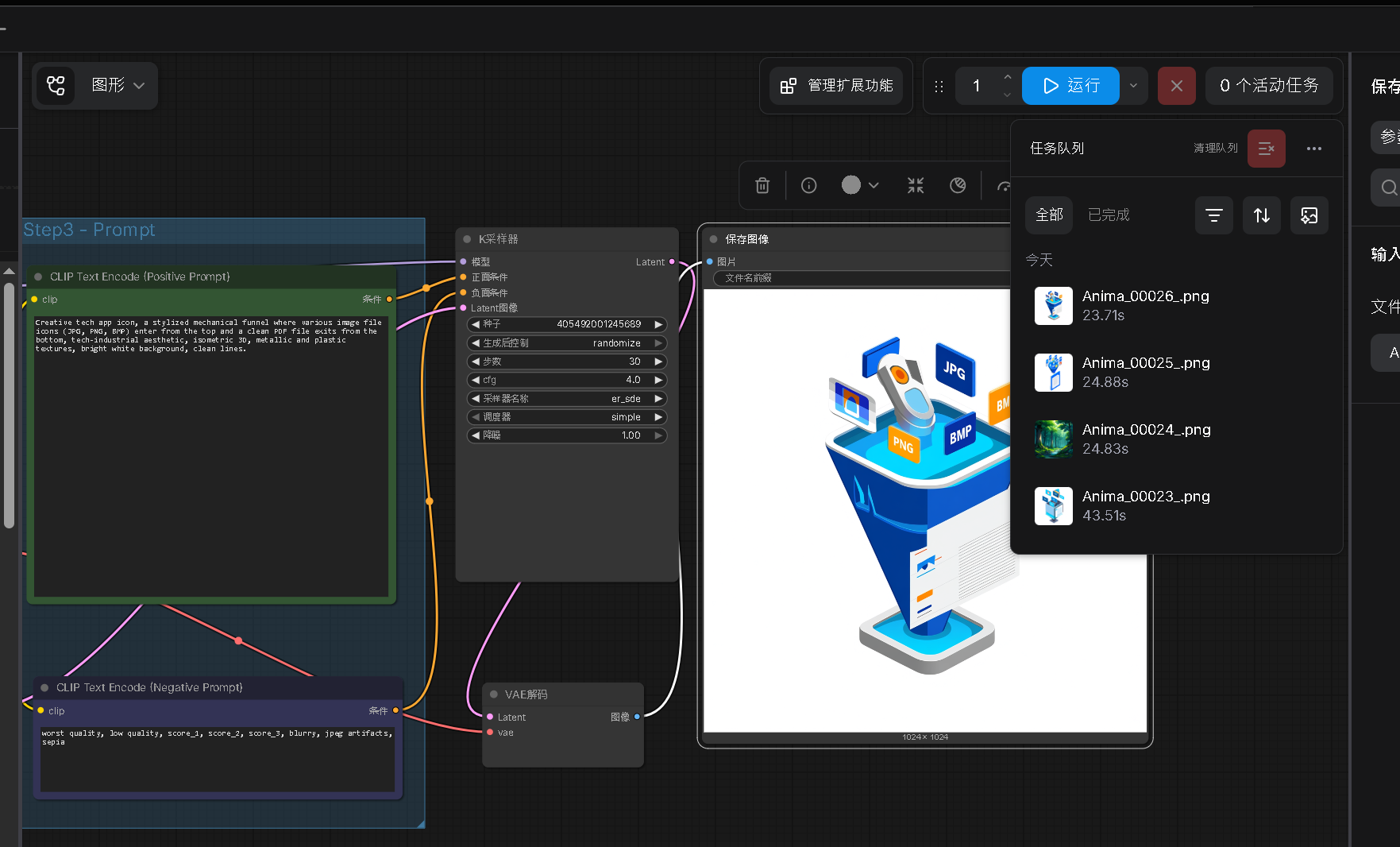
可以利用各種 AI 生圖工具,來生成自己程式的專屬 Icon ,參考此篇 ComfyUI生圖教學
我生成了以下 icon 圖片
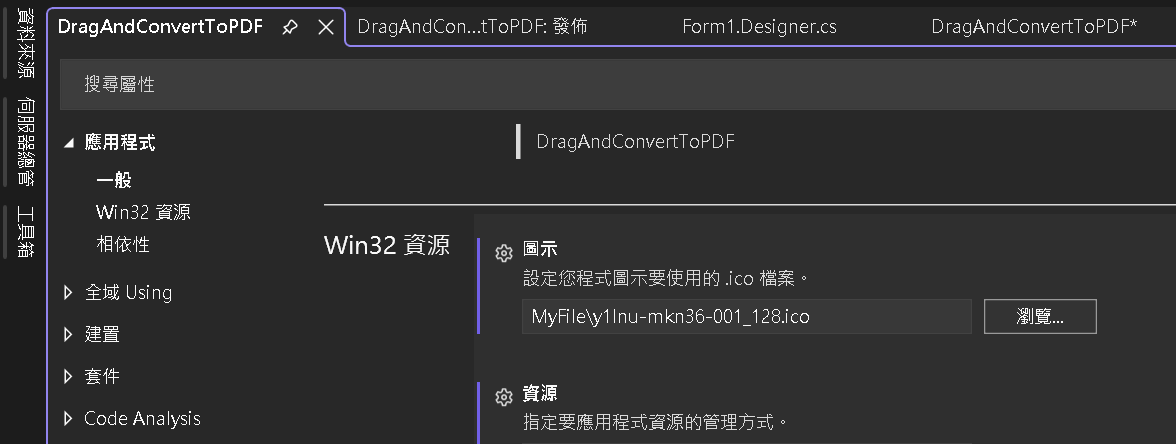
然後回到 Visual Studio 專案,開啟應用程式 -> Win32 資源 -> 圖示 -> 將自己的 Icon 圖片如圖的方式 瀏覽… 添加
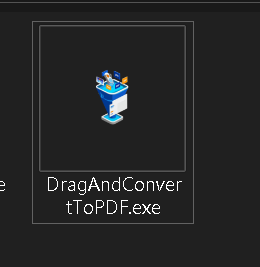
最後在進行 發佈(B)… 即可出現程式專屬的 Icon
輸出成果:
Step 2:遭遇困難 - bouncy-castle-adapter - iText 加密輕量化問題
開發過程遇到 Unknown PdfException. 完整錯誤訊息如下:
主要的原因是必須安裝 第二部分的 Nuget 安裝 itext.bouncy-castle-adapter 套件
iText (通常是 7.2.x 或 8.x) 中,核心套件為了保持輕量化,將加密與雜湊處理(如 BouncyCastle)抽離成了獨立的配接器 (Adapter)。
因此執行圖片轉 PDF,iText 在初始化 PdfWriter 時仍會嘗試尋找雜湊引擎來處理物件,如果沒安裝就會出現 Unknown PdfException 的異常
Text.Kernel.Exceptions.PdfException: Unknown PdfException.

 ---> System.NotSupportedException: Either com.itextpdf:bouncy-castle-adapter or com.itextpdf:bouncy-castle-fips-adapter dependency must be added in order to use BouncyCastleFactoryCreator

   at iText.Bouncycastleconnector.BouncyCastleDefaultFactory.CreateIDigest(String hashAlgorithm)

   at iText.Kernel.Pdf.SmartModePdfObjectsSerializer..ctor()

   --- End of inner exception stack trace ---

   at iText.Kernel.Pdf.SmartModePdfObjectsSerializer..ctor()

   at iText.Kernel.Pdf.PdfWriter..ctor(Stream os, WriterProperties properties)

   at iText.Kernel.Pdf.PdfWriter..ctor(String filename, WriterProperties properties)

   at iText.Kernel.Pdf.PdfWriter..ctor(String filename)

   at DragAndConvertToPDF.Program.CreatePdfFromImages(List`1 imagePaths, String destPdf) in D:\github\MyBlogExample\MyBlogExample\DragAndConvertToPDF\DragAndConvertToPDF\Program.cs:line 93

   at DragAndConvertToPDF.Program.Main(String[] args) in D:\github\MyBlogExample\MyBlogExample\DragAndConvertToPDF\DragAndConvertToPDF\Program.cs:line 61