日期:2018年 09月 09日
標籤: C# Log4net Asp.NET Framework Windows Forms
摘要:C# 學習筆記
STEP 1: 建立C# WindowsForm的專案
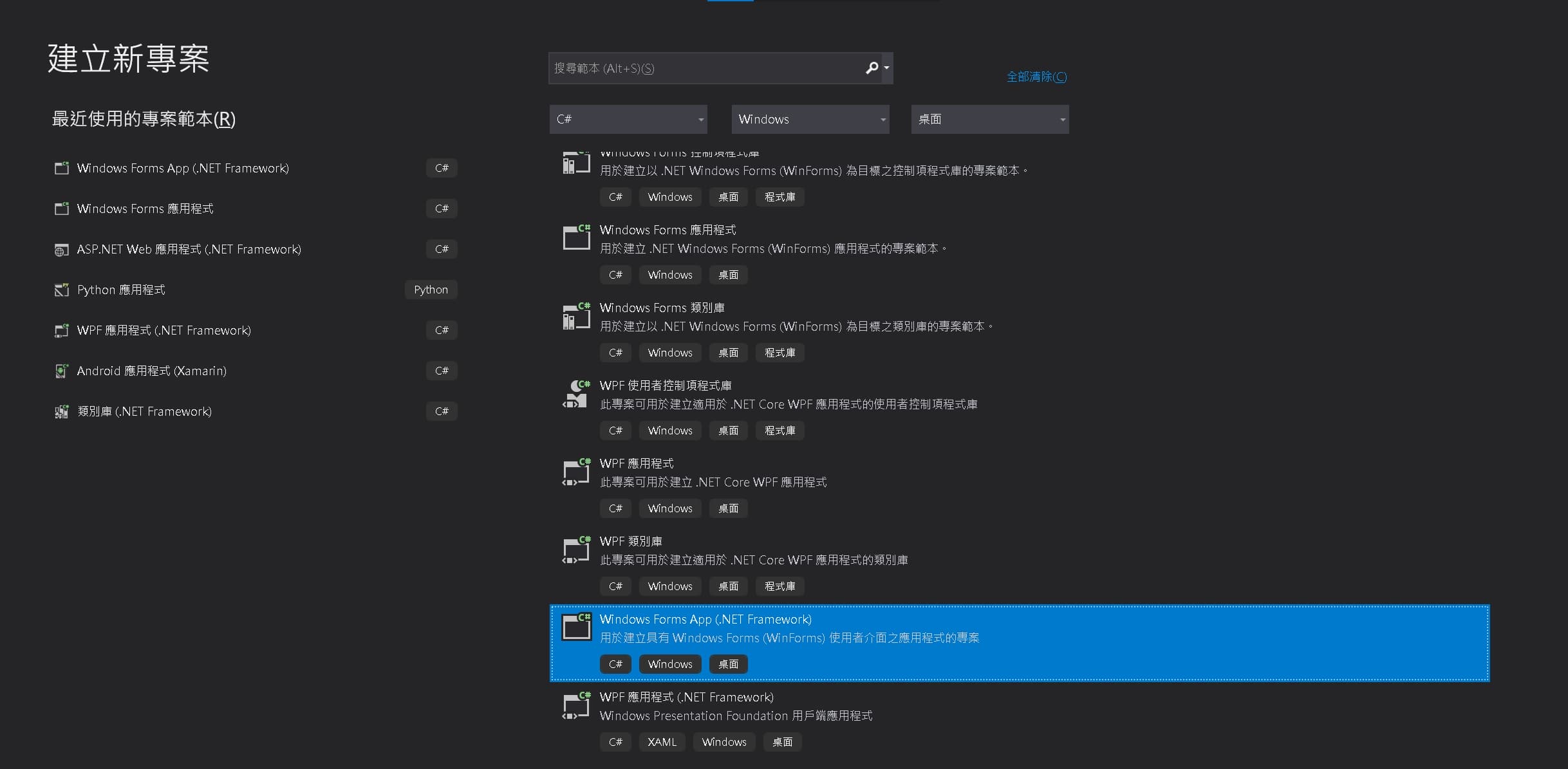
STEP 2: 架構選擇.netframework
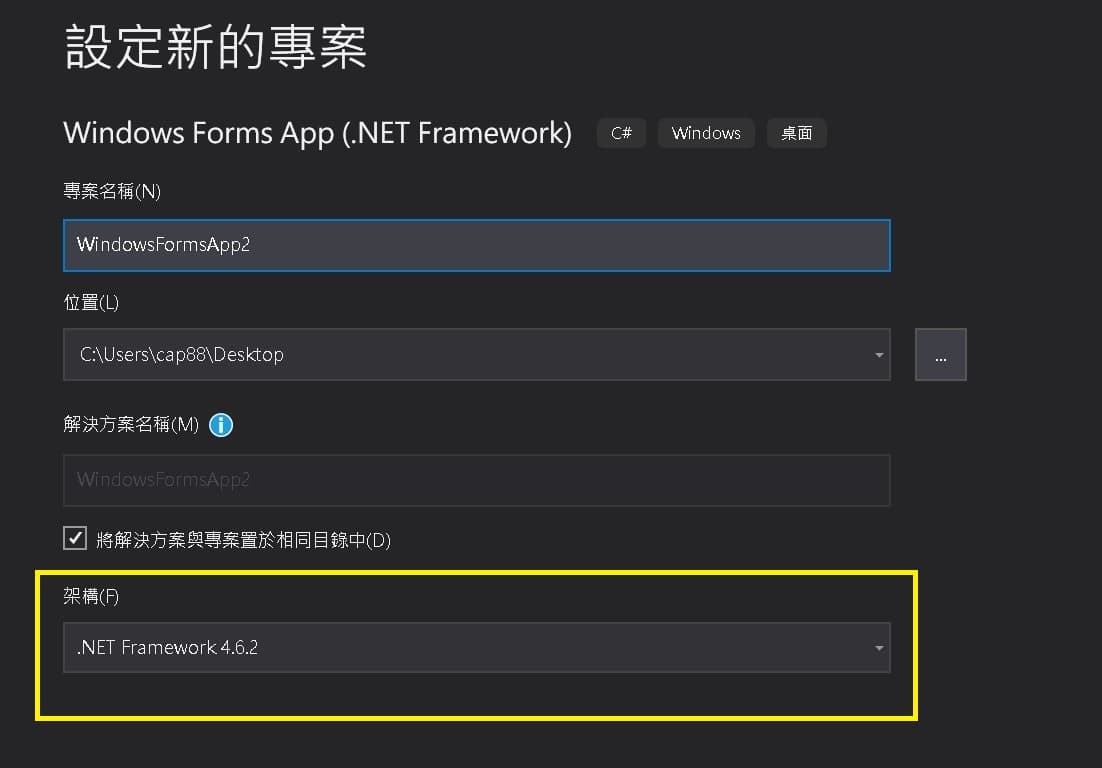
STEP 3: 接著請對專案按下 “滑鼠右鍵” -> 管理Nuget套件
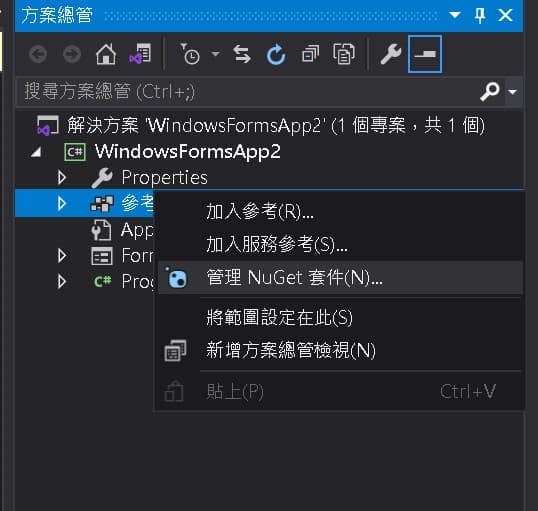
STEP 4: 安裝Log4net

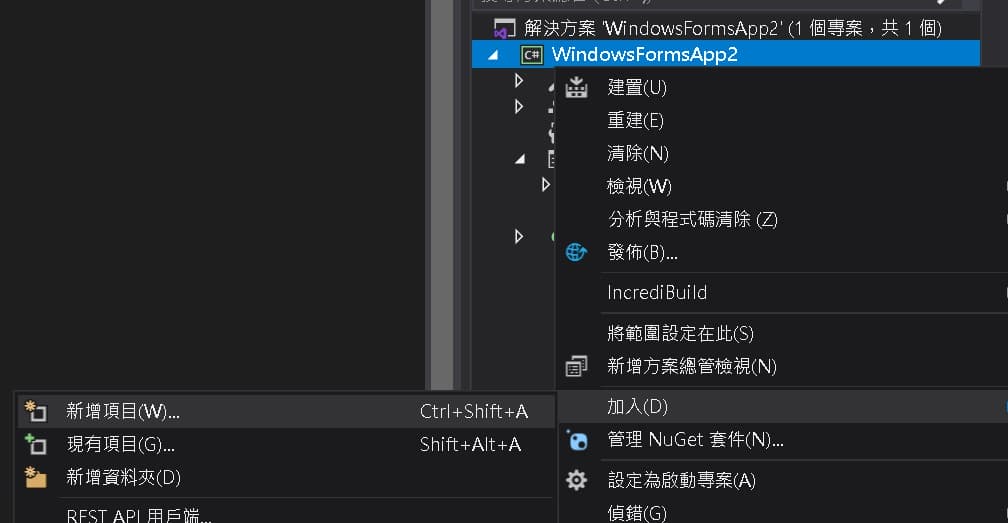
STEP 5: 接著請對專案按下 “滑鼠右鍵” -> 加入 -> 新增項目
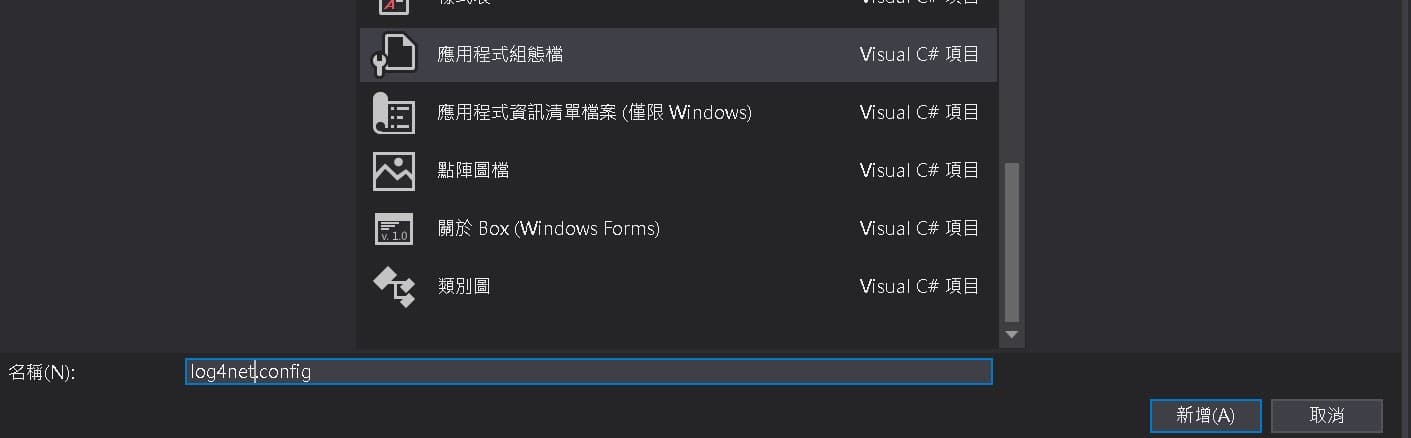
STEP 6: 選擇”應用程式組態”,並且輸入 “log4net.config”
STEP 7: 將log4net.config內貼上以下代碼
※這是從官網中範例複製而來
<?xml version="1.0" encoding="utf-8" ?>
<configuration>
  <log4net>
    <appender name="Console" type="log4net.Appender.ConsoleAppender">
      <layout type="log4net.Layout.PatternLayout">
        <!-- Pattern to output the caller's file name and line number -->
        <conversionPattern value="%5level [%thread] (%file:%line) - %message%newline" />
      </layout>
    </appender>

    <appender name="RollingFile" type="log4net.Appender.RollingFileAppender">
      <file value="example.log" />
      <appendToFile value="true" />
      <maximumFileSize value="100KB" />
      <maxSizeRollBackups value="2" />

      <layout type="log4net.Layout.PatternLayout">
        <conversionPattern value="%level %thread %logger - %message%newline" />
      </layout>
    </appender>

    <root>
      <level value="DEBUG" />
      <appender-ref ref="Console" />
      <appender-ref ref="RollingFile" />
    </root>
  </log4net>
</configuration>
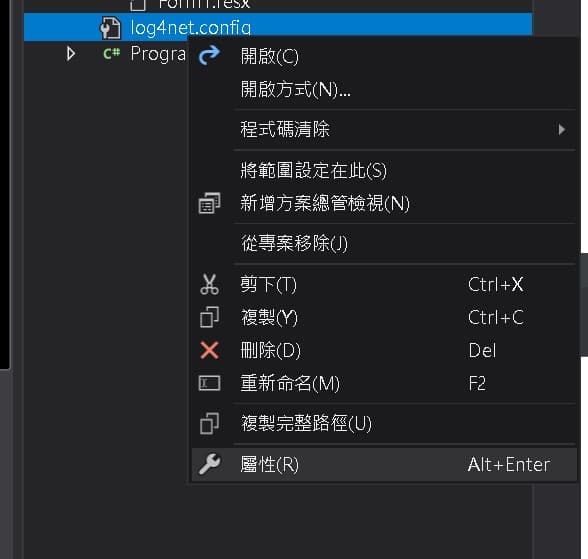
STEP 8: 完成後請對專案的log4net.config檔案按下 “滑鼠右鍵” -> 屬性
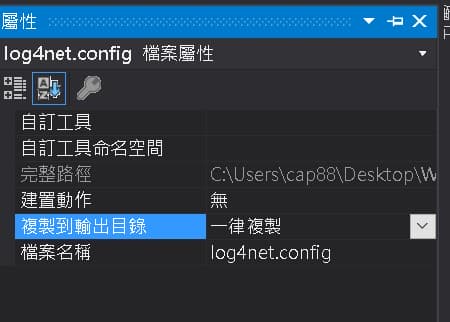
STEP 9: 複製到輸出目錄選擇”一律複製”
STEP 10: 對專案的Properties展開 -> 點開 Assemblyinfo.cs 檔案
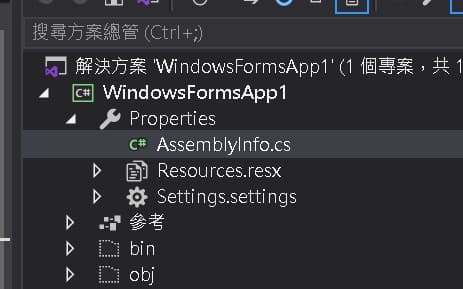
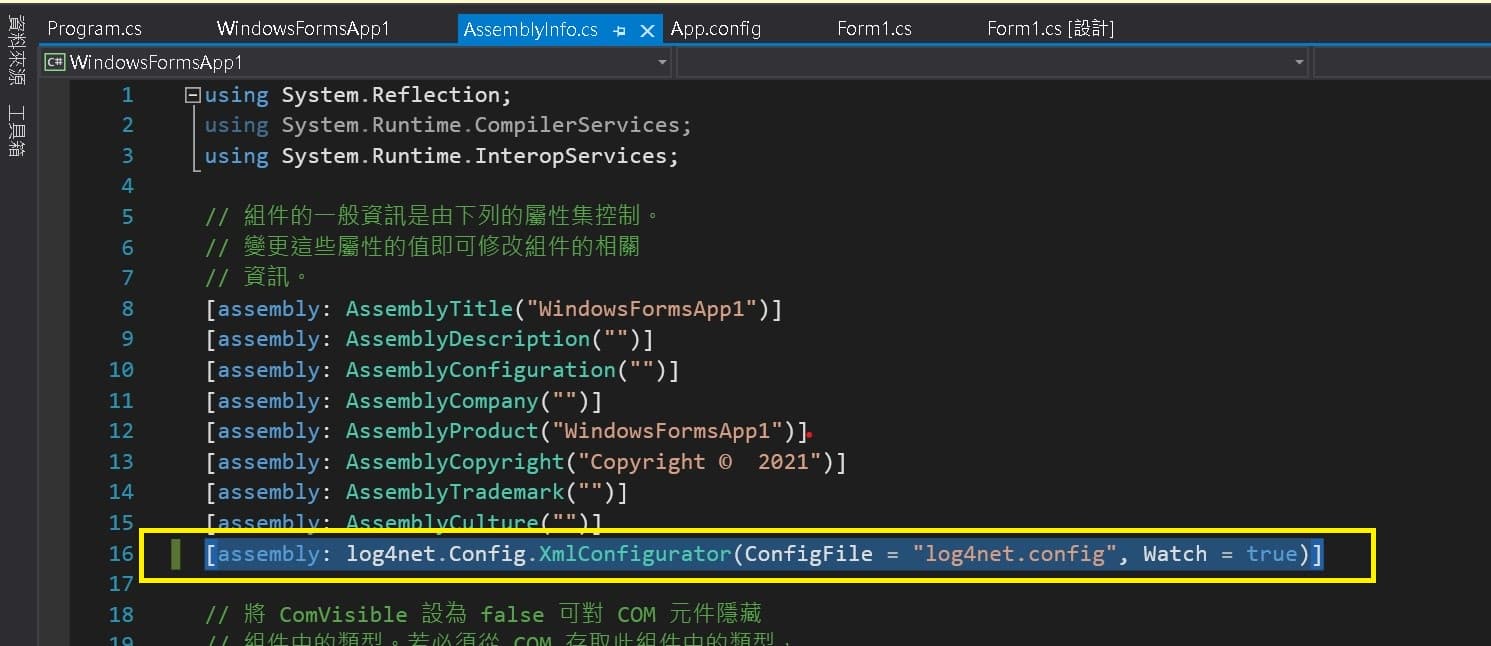
STEP 11: 這是關鍵,若沒有會無法對應到組態檔案,請於Assemblyinfo.cs 檔案中添加以下代碼
[assembly: log4net.Config.XmlConfigurator(ConfigFile = "log4net.config", Watch = true)]
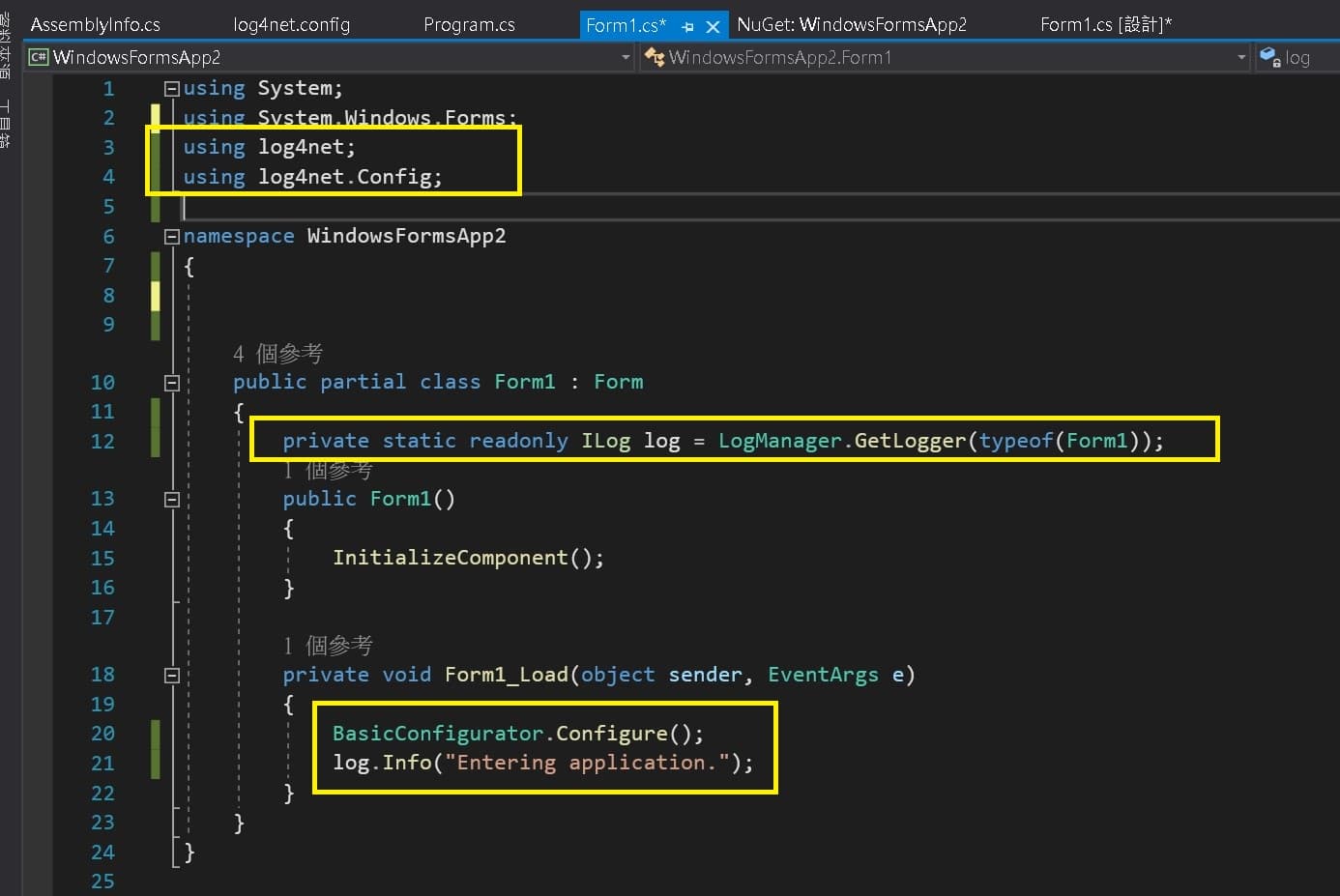
STEP 12: 開啟主程式的 Form1.cs ,依序填入以下的代碼,可以參照圖片的位置
using log4net;
using log4net.Config;
private static readonly ILog log = LogManager.GetLogger(typeof(Form1));
BasicConfigurator.Configure();
log.Info("Entering application.");
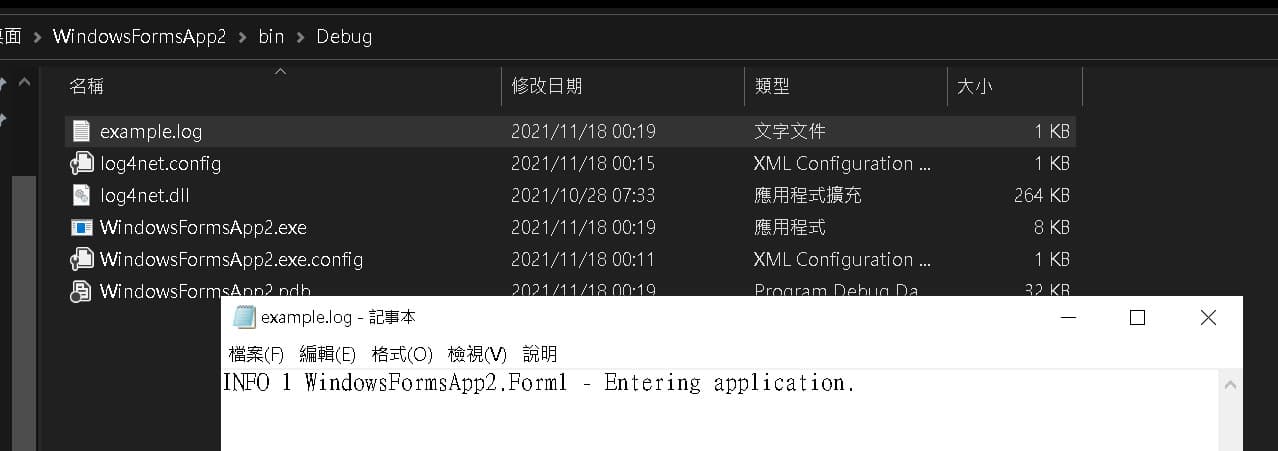
STEP 13: 可以執行程式,到專案底下的輸入目錄,可以看到有生成的example.log檔案,裡面會有在Step-12的 “Entering application.” 訊息