日期:2017年 01月 01日
標籤: C# Asp.NET Framework MVC Web Html Word JavaScript JQuery
摘要:ASP.Net MVC 學習筆記
STEP 1:在.html中使用以下Script
<script src="http://code.jquery.com/jquery-1.11.1.min.js"></script>
<script src="http://markswindoll.github.io/js/FileSaver.js"></script>
<script src="http://markswindoll.github.io/jquery-word-export/jquery.wordexport.js"></script>
STEP 2:撰寫Javscript針對某個頁面上的Dom元件做匯出:
<script>
    $("#export_id").wordExport("匯出的Word檔案名稱");
</script>
STEP 3:在Body內容中添加按鈕與頁面上的元素,點擊時觸發下載:
<input type='button' value="轉成Word並且下載" onclick="exportWord()"/>
<div id="eport_id">
  <table>
    <tr>
      <td>a</td>
      <td>b</td>
    </tr>
  </table>
</div>
STEP 4:以下是上述3個步驟完成的頁面內容:
<!DOCTYPE html>
<html>

<head>
  <script src="http://code.jquery.com/jquery-1.11.1.min.js"></script>
  <script src="http://markswindoll.github.io/js/FileSaver.js"></script>
  <script src="http://markswindoll.github.io/jquery-word-export/jquery.wordexport.js"></script>
  <script>
  function exportWord(){
   $("#export_id").wordExport("匯出的Word檔案名稱");
  }
  </script>
</head>

<body>
<input type='button' value="轉成Word並且下載" onclick="exportWord()"/>
<div id="export_id">
  <table>
    <tr>
      <td>a</td>
      <td>b</td>
    </tr>
  </table>
</div>
</body>
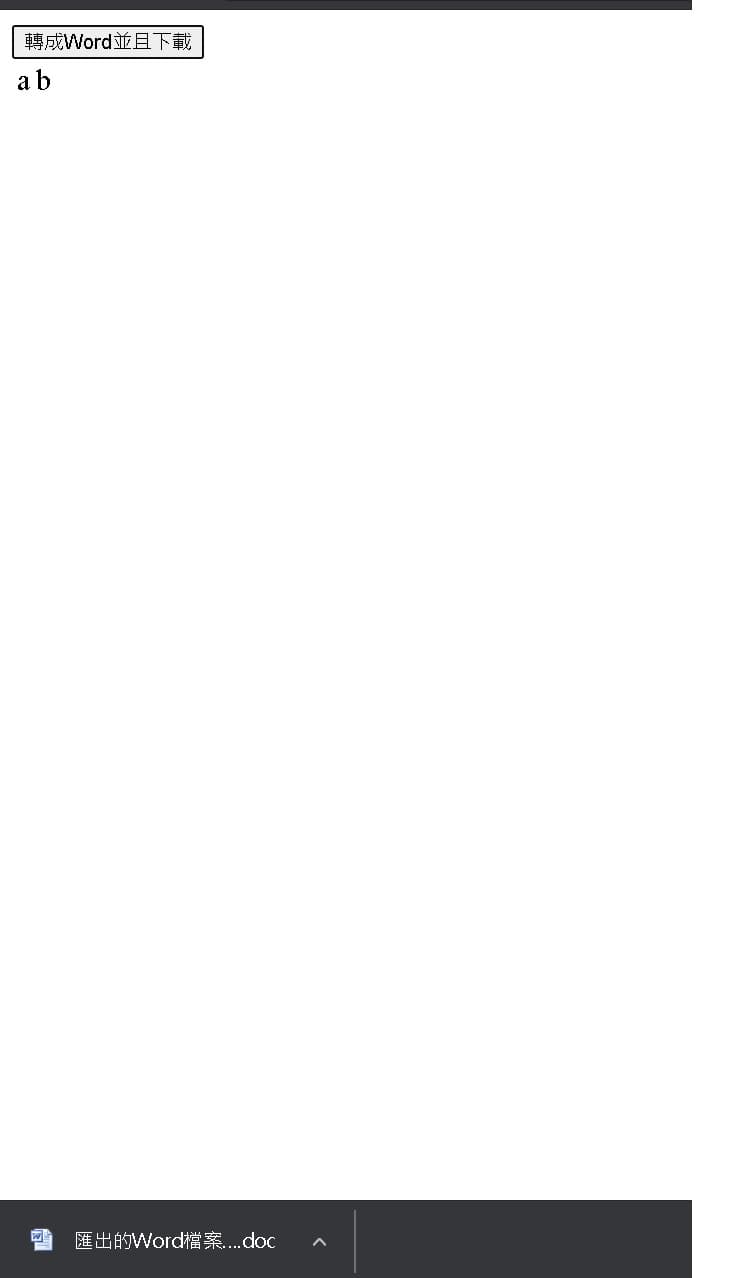
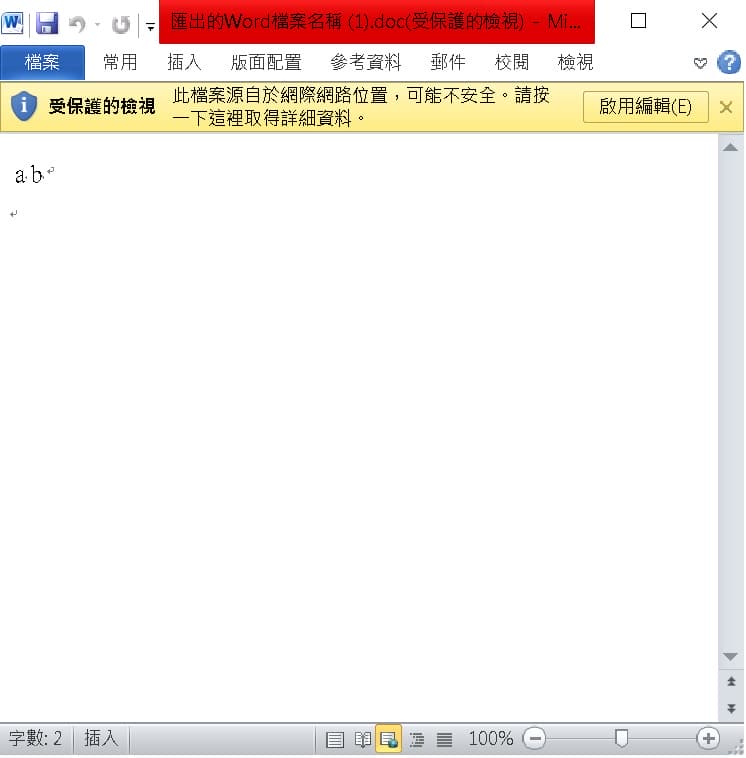
STEP 5:以下是執行結果
a. 當點擊按鈕時可以下載Word檔案
b. 下載後打開的Word內容,就是頁面上的元素
STEP 6:或者直接看DEMO頁面 範例